DCQL: Trusted Authorities
The trusted_authorities field in a DCQL query allows a verifier to restrict accepted credentials to those issued by specific trust anchors.
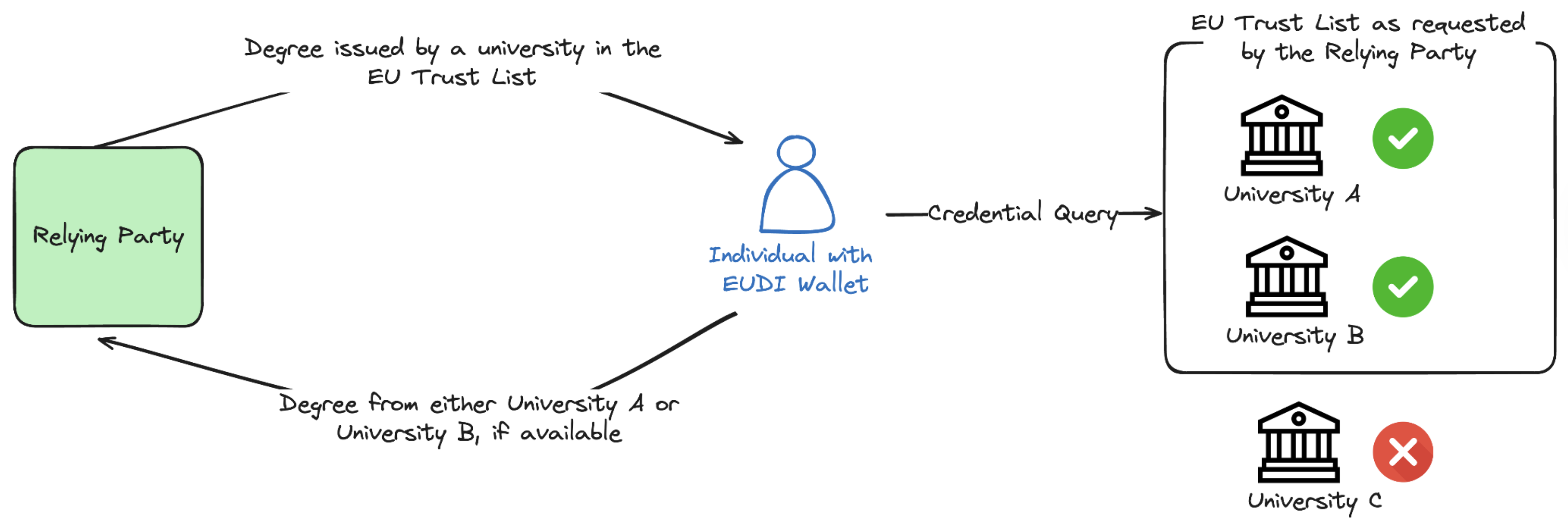
Scenario: A verifier requests a University Degree credential, accepting it only if issued by an authority in the EU Trust List, EBSI, or an OpenID Federation trust anchor.
For the underlying DCQL query, diagram and video walkthrough, see the “Basic credential query with trusted authority” use case in our DCQL concepts article.
Step 1: Get the API Key (Issuer Admin)
To obtain your API key, please contact [email protected]. Once you have received your API key, enter it in the field below and click the Set API Key button to save it for future use.
x509 key of your organisation: a key with a certificate chain. After you set the API key, the page fills in such a key. If no key has a certificate, it fills in your default key with did:key, for tests only. To choose another key, click the key label next to a signing key field in a request, for example cryptographicKeyIdentifier. To create a key, attach a certificate or see your keys, follow the key management guide. To add your certificate to the NXD trust list, see trust list registration.Step 2: Create Credential Definitions (Issuer Admin)
To create a credential definition, run the code block below using the Run button. Alternatively, you can manually copy the code block and use it in the body of the API request available here.
Note: With
cryptographicKeyFormatx509, thecryptographicKeyIdentifiermust be a key of your organisation that has a certificate chain. The page fills in such a key after you set the API key. Use Select key on the request to choose another key, or see the key management guide.
From the API response, copy the credentialDefinitionId and id value from the credentialDefinitions array for use in the Step 3.
Aegean University Degree - Master's (Issuer Admin)
Use this step to create the credential definition for the Aegean University Master's degree that is present in the EWC Trust List and key format x509.
Request
Response
Aegean University Degree - Bachelor's (Issuer Admin)
This step creates the credential definition for the Aegean University Bachelor's degree, also present in the EWC Trust List and key format x509.
Request
Response
ABC University Degree - Bachelor's (Issuer Admin)
In this step you create the credential definition for a Bachelor's degree issued by ABC University, Australia. This university is not in the EWC Trust List: its signing certificate is not on the list, so the trusted_authorities query does not match its credential.
Request
Response
Step 3: Issue and Receive Credential (Issuer/Holder)
The holder of the wallet submits a request for the issuance of a credential by executing the JSON code block below using the Run button in the InTime issuance mode. Run the request separately for each credential type. When you run Step 2 on this page, the credentialDefinitionId and id fields of the matching request below are autofilled (and updated whenever that Step 2 block is re-run). If you are executing the APIs yourself, replace <credentialDefinitionId> and <id> with the values obtained in Step 2. Alternatively, you may use the API available here.
After receiving the response, toggle the provided button to dynamically generate a QR code. The EUDI Wallet/Holder can then accept the credential offer using the Data Wallet (or any other EU Digital Identity Wallet) by either scanning the QR code or directly accessing the credential offer on their mobile device (e.g. via a browser).
Aegean University Degree - Master's
Request
Response
Aegean University Degree - Bachelor's
Request
Response
ABC University Degree - Bachelor's
Request
Response
To receive and accept the credential via API. First, use the credentialOffer to call the Receive Credential API. Once you have the response, copy the credentialId and provide it at Accept Credential API to accept the credential.
Step 4: Create Presentation Definition (Verifier Admin)
To create a presentation definition for requesting proof, you can run the code block below using the Run button. Alternatively, you can manually copy the code block and use it in the body of the API request provided here.
Note: With
cryptographicKeyFormatx509, thecryptographicKeyIdentifiermust be a key of your organisation that has a certificate chain. The page fills in such a key after you set the API key. Use Select key on the request to choose another key, or see the key management guide.
- Create a Presentation Definition by executing the code block below.
Request
Response
Once a presentation definition has been created, the presentationDefinitionId is autofilled in Step 5 automatically (and updated whenever Step 4 is re-run). You can also reuse the same presentationDefinitionId to verify multiple credentials.
Step 5: Create Verification Request (Verifier/Relying Party)
When you run Step 4 on this page, the presentationDefinitionId field below is autofilled automatically (and updated whenever Step 4 is re-run). If you are executing the APIs yourself, replace <presentationDefinitionId> with the ID obtained in Step 4. To create the verification request, execute the code block below using the Run button. Alternatively, you can manually copy the JSON and use it in the body of the API available here.
After receiving the response, toggle the button provided to dynamically generate a QR code. The EUDI Wallet/Holder can then accept the verification request using the Data Wallet (or any other EU Digital Identity Wallet) by either scanning the QR code or directly accessing the verification request on their mobile device, such as via a browser.
Request
Response
Step 6: Send and Receive Verifiable Presentation (Holder)
The holder wallet accepts (consents) to send the requested credentials.
- Receive Verification:
- Use the
vpTokenQrCode(step 5) with the API available here to receive the verification. - Copy the
presentationIdfrom the JSON response received from Receive Verification for use in Step 6b.
- Use the
- Filter Verification:
- Use that
presentationIdwith the API available here to find matching credentials. - Save the
<id>and<credentialId>from the response.
- Use that
- Send Verification:
- Use the
presentationId,<id>and<credentialId>with the API available here to send the credentials to the verifier.
- Use the
Step 7: Send and Receive Verifiable Presentation (Verifier/Relying Party)
- The Verfier (Relying Party) receives the requested credentials and can verify it. They may read the received credential by executing the Read Verification History API.
- From the response received, the
vpTokenResponsecan be decoded using JWT Decoder. - From the decoded response, the
verifiableCredentialinside the 'vp' can be further decoded to view the received credentials.