Passwordless Login with EUDI Wallets
Overview
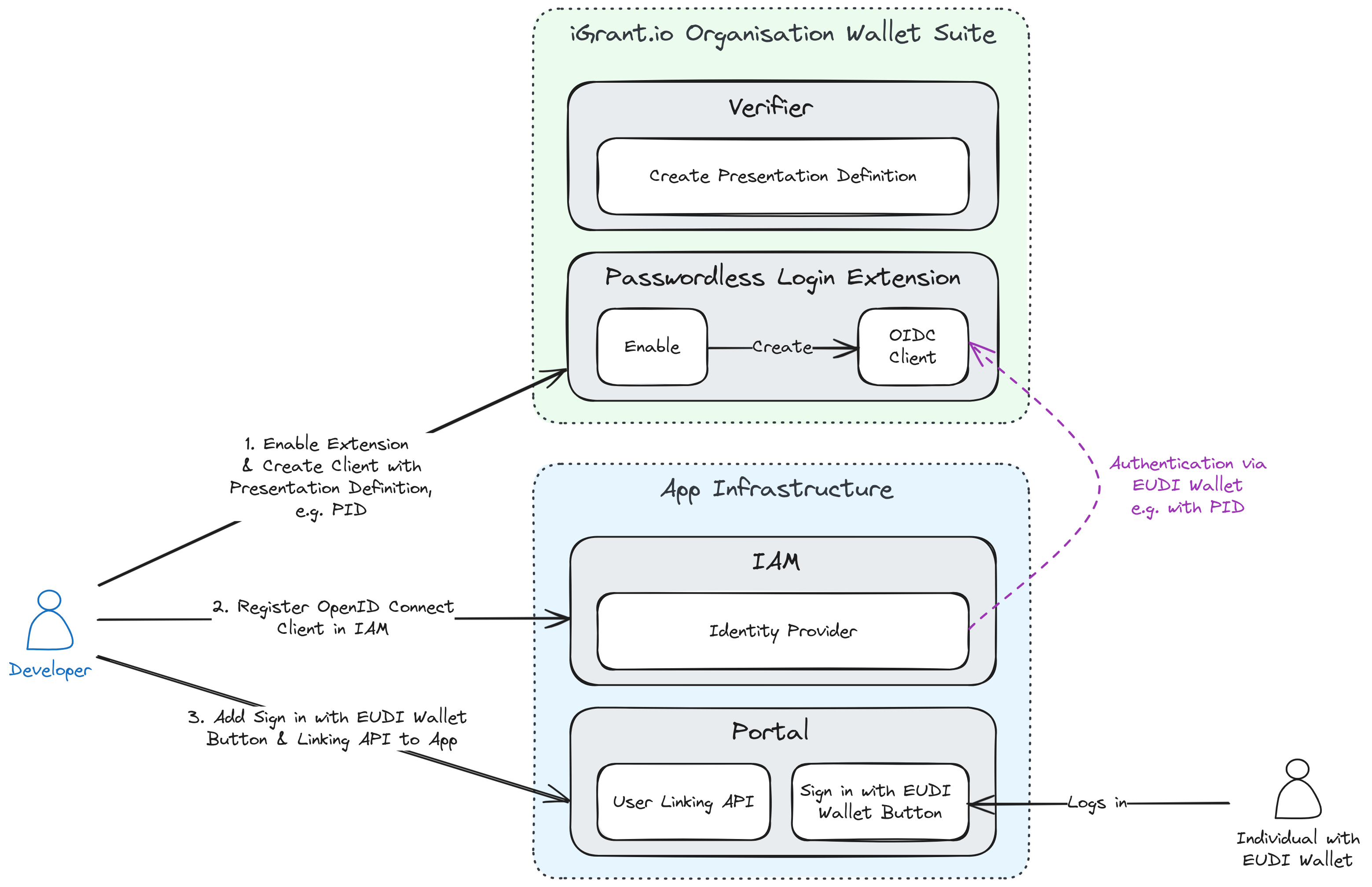
By enabling the Passwordless Login extension in the iGrant.io Organisation Wallet Suite and configuring any OpenID Connect-compatible Identity and Access Management (IAM) system as a relying party (RP), organisations can allow users to log in without a password using their digital wallet credentials.
This guide consists of two parts:
- Enable and configure the Passwordless Login extension in your iGrant.io Organisation Wallet Suite.
- Configure your IAM to use iGrant.io as an OpenID provider with step-by-step guides.
Pre-requisites
Before implementing the passwordless login flow with EUDI Wallets, ensure you have:
- An iGrant.io Organisation Wallet Suite with administrator access
- EUDI Wallet available for testing the authentication flow
- A Presentation Definition ID, if you create the OpenID client with the API (create one here). In the dashboard, you can create the presentation definition together with the client.
- A running IAM instance that supports OpenID Connect (e.g. Keycloak 15+, Auth0, Ping Identity, etc.)
Part 1: Configure the Passwordless Login Extension
Step 1: Get the API Key (Organisation Admin)
To obtain your API key, please contact [email protected]. Once you have received your API key, enter it in the field below and click the Set API Key button to save it for future use.
x509 key of your organisation: a key with a certificate chain. After you set the API key, the page fills in such a key. If no key has a certificate, it fills in your default key with did:key, for tests only. To choose another key, click the key label next to a signing key field in a request, for example cryptographicKeyIdentifier. To create a key, attach a certificate or see your keys, follow the key management guide. To add your certificate to the NXD trust list, see trust list registration.Step 2: Enable the Passwordless Login Extension
To enable the Passwordless Login extension, run the code block below using the Run button. The response contains metadataUrl, the OpenID Connect metadata discovery URL (/.well-known/openid-configuration). Copy it for IAM configuration (Step 4).
Request
Response
Alternatively you can do this step manually by copying the code block and using it in the body of the API request available here (select https://demo-api.igrant.io from the Base URL dropdown and enter oidc as the extensionId). Copy the OpenID Connect metadata discovery URL (/.well-known/openid-configuration) for IAM configuration (Step 4).
The discovery document lists the authorisation, token, UserInfo and JWKS endpoints.
Step 3: Create an OpenID Client
Create the client in the dashboard or with the API. Both give you the Client ID and Client Secret. Copy them for IAM configuration (Step 4). You will need the following from your IAM:
- Redirect URI
- Allowed origin (based on the redirect URI's domain)
Note: If you don't already have the Redirect URI it can be updated later and left blank for now, see the IAM-specific section below for instructions on where to find it.
A presentation definition can be used by one client only.
Option 1: Create the Client in the Dashboard
- Go to Issuer & Verifier > Extensions > Passwordless Login > MANAGE.
- Click the circled plus icon next to OpenID Connect Clients. The drawer Create OpenID Connect Client opens.
- Enter the Name and set the Presentation Definition in one of the three ways in the table below.
- Check the Action. This is the login text that the wallet may show to the user. The field is prefilled with "Login with EUDI Wallet".
- Select the Identity Resolution Method. With Identity Matching Attributes (default), select the identity attribute for each credential. With Callback URI, enter the Callback URI and the Callback Secret.
- Under URIS & ORIGINS, enter the Redirect URIs and the Web Origins.
- Click SAVE. Copy the Client ID and Client Secret of the new client from the list OpenID Connect Clients.
There are three ways to set the Presentation Definition:
| Way | What it does |
|---|---|
| Credentials | Pick one or more credentials, for example PID. A new presentation definition is created from them when you save. The user logs in with any one of them. |
| Existing presentation definitions | Select a presentation definition you already created. No new one is created. |
| Create new presentation definition | Build your own. It is created when you save. |
Option 2: Create the Client with the API
You will need the Presentation Definition ID you created in the pre-requisites. Replace the string values in the request, then run the code block below using the Run button. A successful response has the status 201 and contains clientId and clientSecret.
The request matches the presentation definition of the pre-requisite guide, created with the OpenID4VP Version "Version 01" and the Credential Format "W3C VC (JWT)" or "IETF SD-JWT".
Request
Response
Alternatively you can do this step manually by copying the code block and using it in the body of the API request available here (select https://demo-api.igrant.io from the Base URL dropdown).
| Field | Required | Description |
|---|---|---|
presentationDefinitionId | Yes | The presentation definition that the wallet receives at login. |
name | Yes | A name describing the purpose of the client. |
redirectURIs | No | The redirect URIs of your IAM. The redirect URI of a login request must match one of them exactly. |
allowedOrigins | No | The web origins of your application. |
identityMatchingAttributes | One of the two | The recommended way to configure identity matching. A map from the identifier of a credential to the dot-separated path of a claim within that credential. The value of this claim is the sub of the user at the token and UserInfo endpoints. |
callbackURI with callbackSecret | One of the two | For identity matching with your own logic. Use an HTTPS endpoint. The endpoint receives the credential presentation and must return a JSON response with a sub field, the subject identifier used to link the user in your IdP. The secret signs the request with HMAC-SHA256. See Webhook Security for details on how to decode and verify the X-iGrant-Signature header. |
transactionDataAction | No | The login text that the wallet may show to the user (e.g. "Log in to your online bank account"). Send it only when the presentation definition has Passwordless Login transaction data. |
Provide either identityMatchingAttributes or callbackURI with callbackSecret, not both. Add one identity matching attribute for each credential of the presentation definition.
Part 2: Configure Your IAM
Organisations can configure iGrant.io as an OpenID provider in any OIDC-compatible IAM. Below are step-by-step guides for Keycloak and Auth0.
Keycloak Configuration
Follow these steps to configure Keycloak as a relying party.
Step 4: Add an Identity Provider (IdP)
- Log in to your Keycloak admin console.
- Navigate to Identity providers > Add provider > OpenID Connect v1.0.
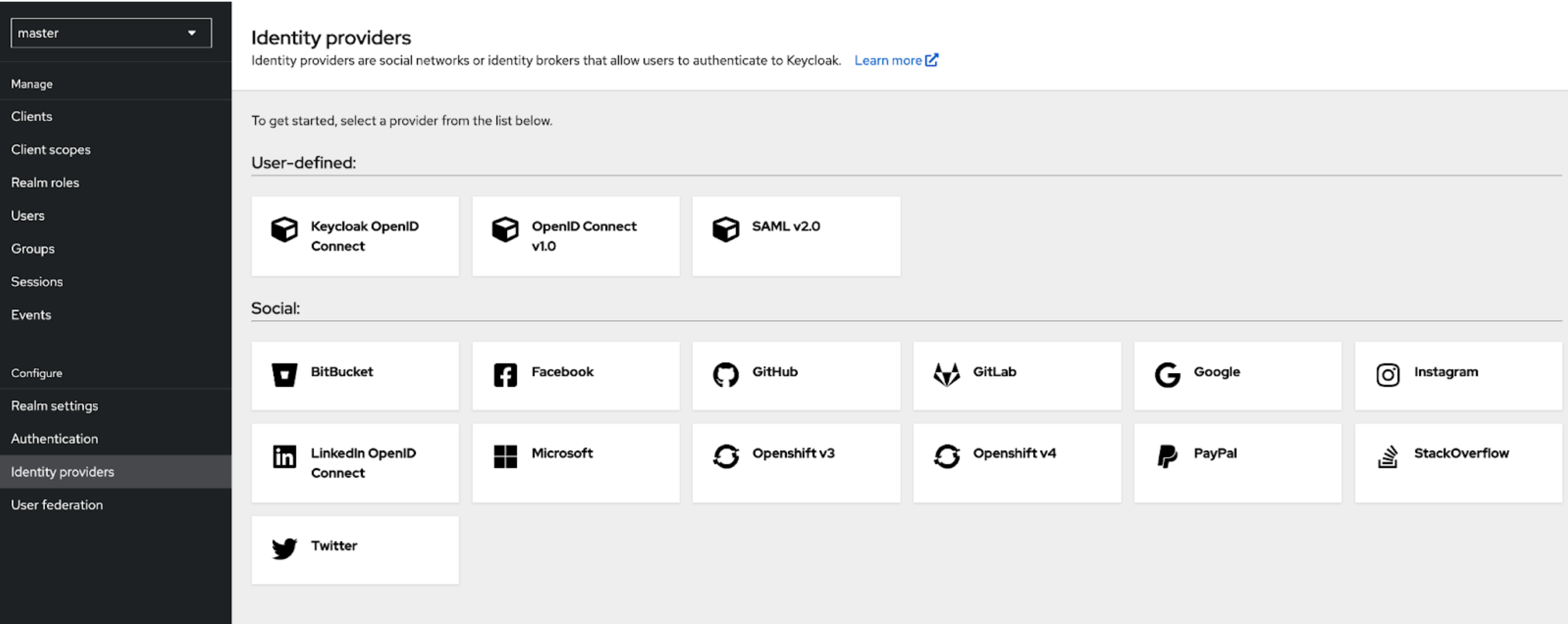 Figure 01: Add Identity Provider
- Enter the following details:
- Alias: e.g.,
igrant - Client ID: (from step 3)
- Client Secret: (from step 3)
- Discovery endpoint: Paste the metadata discovery URL from step 2
- Client Authentication: Set to Client Secret sent as basic auth.
- Alias: e.g.,
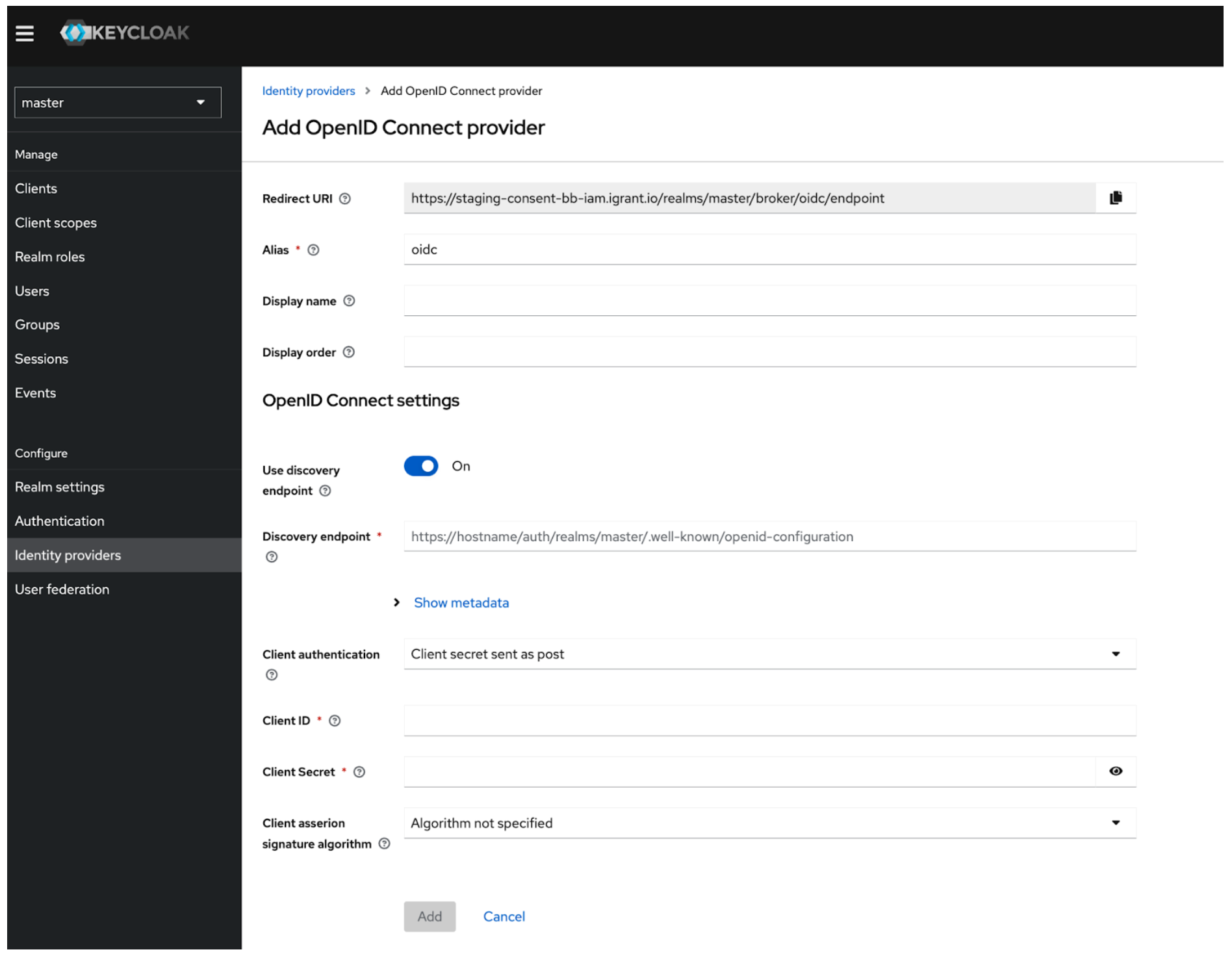 Figure 02: Add OpenID Connect Provider
Figure 02 shows the Keycloak default values. Change them to the values above.
If the discovery endpoint cannot be used directly, retrieve individual endpoints (authorisation, token, userinfo, and JWKS) from the metadata URL (Step 2) in the browser and configure them manually.
Note: You can find the Redirect URI in the settings, update the client here if not already done. The Redirect URI of the client must match the Redirect URI of Keycloak exactly.
Step 5: Create a Custom Authentication Flow in Keycloak
- Go to Authentication > Flows.
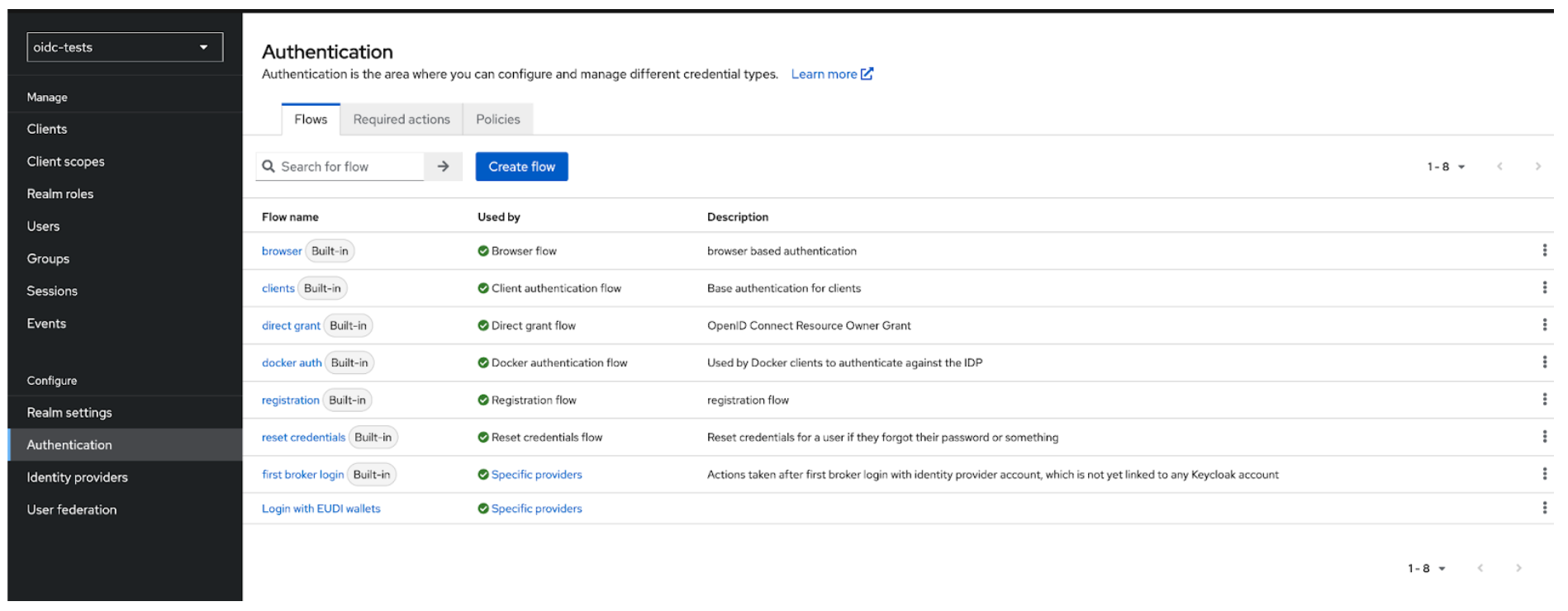 Figure 03: Authentication
- Create a new basic flow, e.g., "Login with EUDI Wallet".
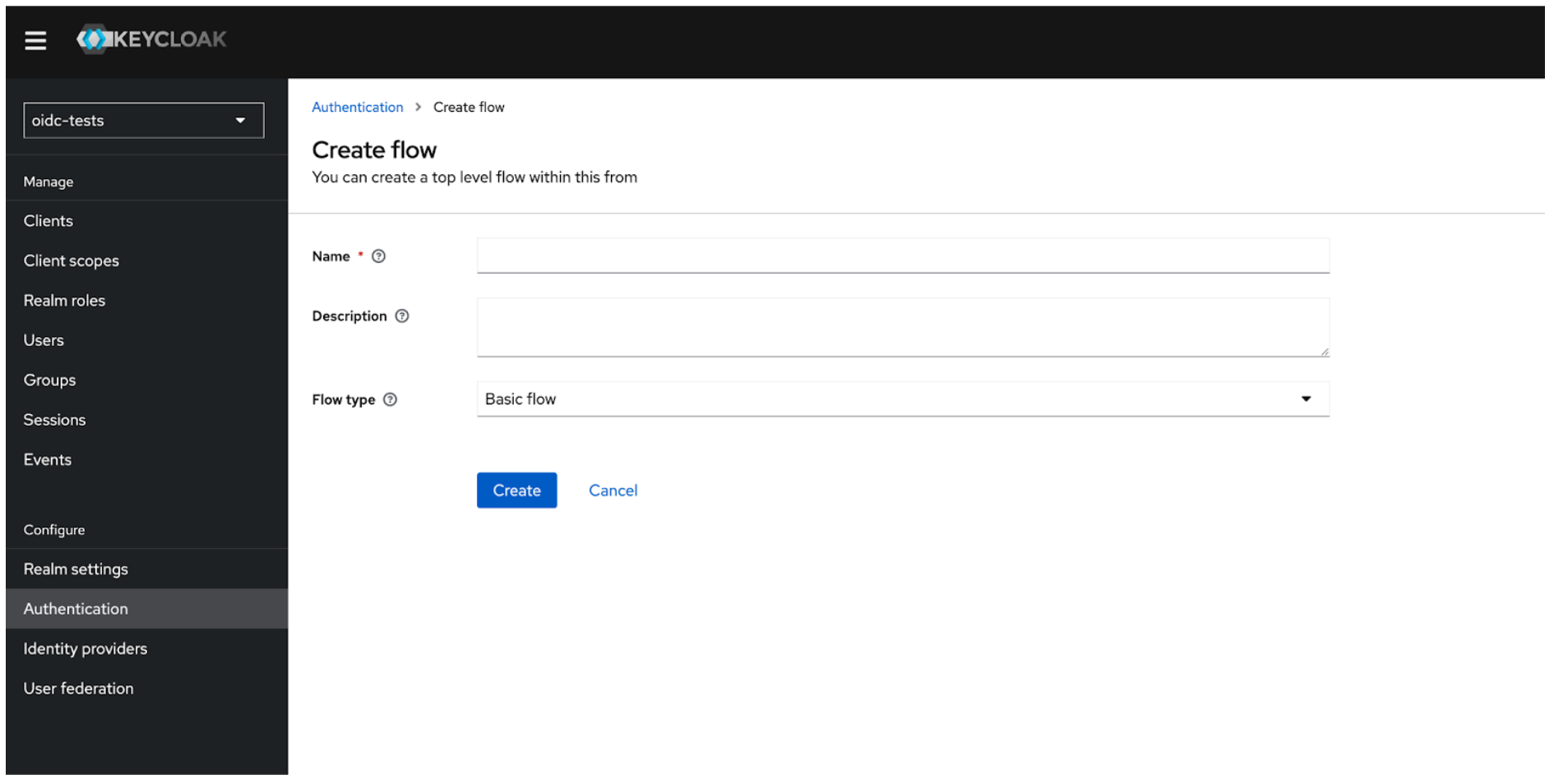 Figure 04: Add Authentication Flow
- Add execution steps required for OpenID Connect-based login.
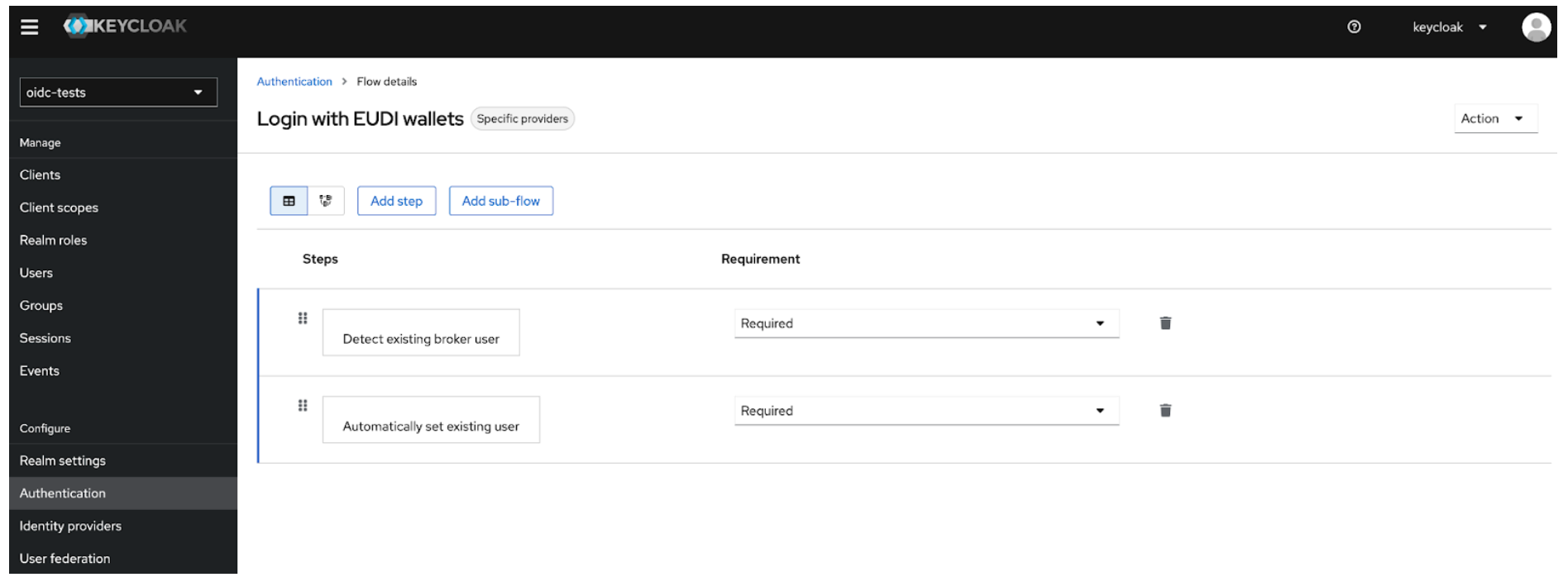 Figure 05: Add Execution Steps
- Mark each step as required to enforce proper validation.
- Save the flow.
Alternatively, add these steps to your current login flow.
Explanation:
- Detect existing broker user: On login from an external IdP, the authenticator checks for a local Keycloak account that matches the external identity (matched via the identity matching attributes configured on the OIDC client). Only users who already exist can continue.
- Automatically set existing user: If a matching local user is found, the authenticator "injects" the user into the authentication context and completes the login (no further confirmation, e.g. password re-entry or email-link is requested).
Step 6: Update the Authentication Flow and Sync Mode in Keycloak
- Navigate to your Identity Provider settings in Keycloak.
- Set the newly created (or updated) authentication flow for the identity provider (e.g. "Login with EUDI Wallet").
- Configure the sync mode ("force" is recommended as it will re-apply the identity matching attributes on every login).
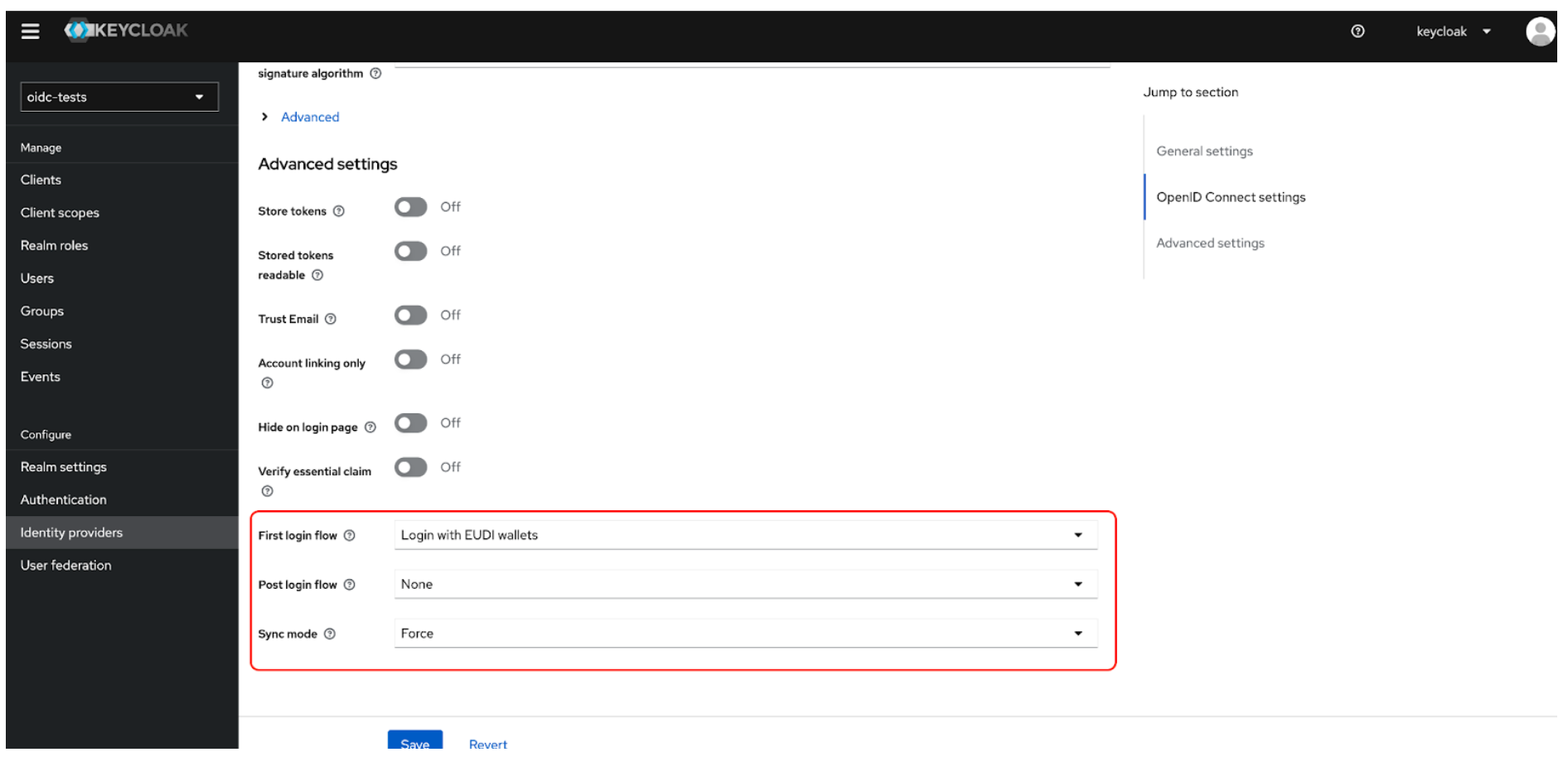 Figure 06: Update the Authentication Flow and Sync Mode in Keycloak
Sample Implementation with React (Keycloak)
A GitHub repository is available that demonstrates how to implement a custom "Sign with EUDI Wallet" button in a React application integrated with Keycloak IAM:
- Repository: https://github.com/L3-iGrant/passwordless-login-playground
- Features:
- Complete React frontend with EUDI Wallet login button
- Integration with Keycloak as the identity provider
- Step-by-step setup instructions
Auth0 Configuration
Follow these steps to configure Auth0 as a relying party.
Step 4: Create an Application in Auth0
- Log in to your Auth0 dashboard and navigate to Applications > Applications.
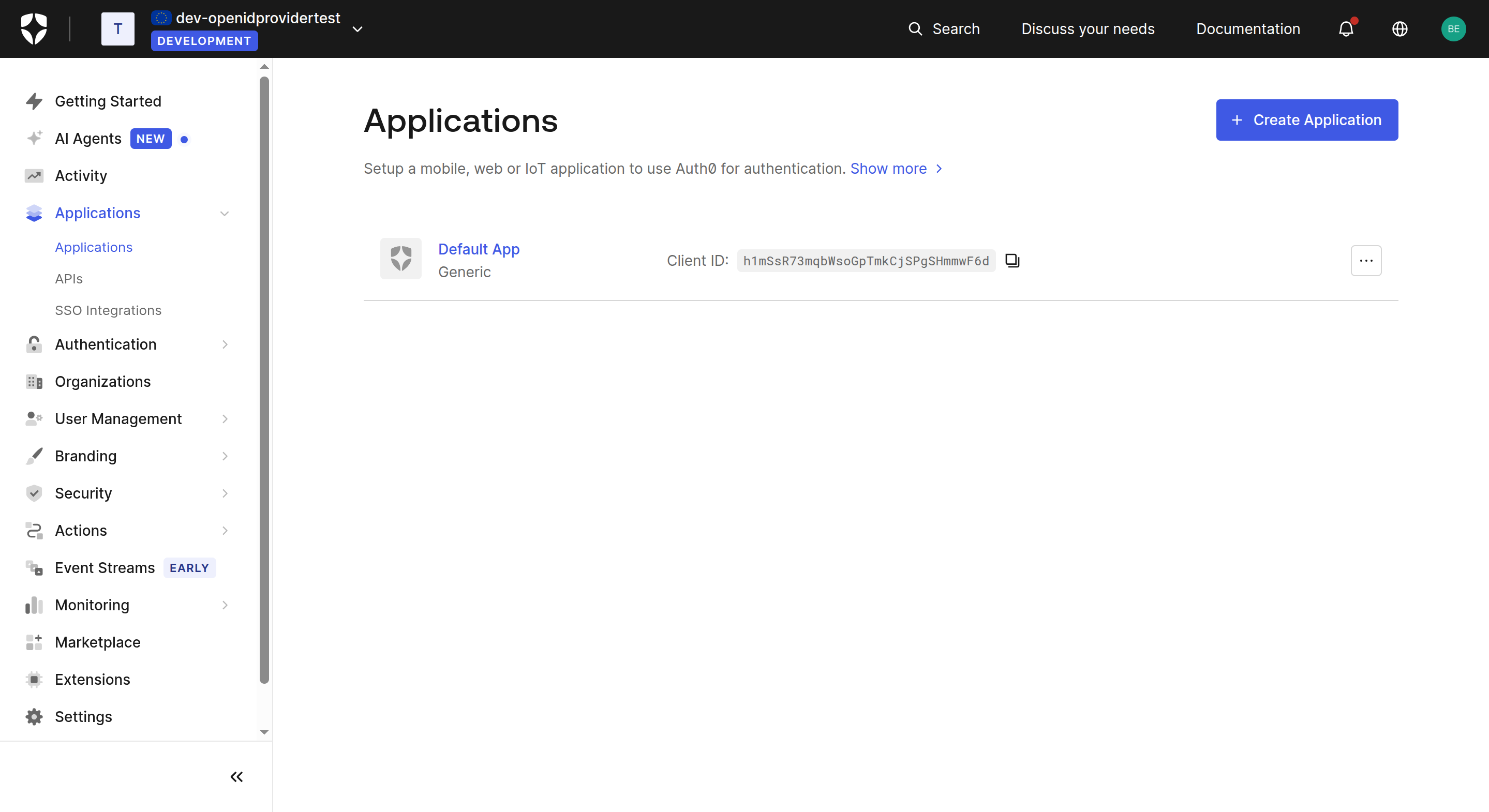 Figure 07: Applications list
- Click + Create Application, give your application a name (e.g.
Auth0 App), and select the appropriate type (e.g. Single Page Web Application for React apps). Click Create.
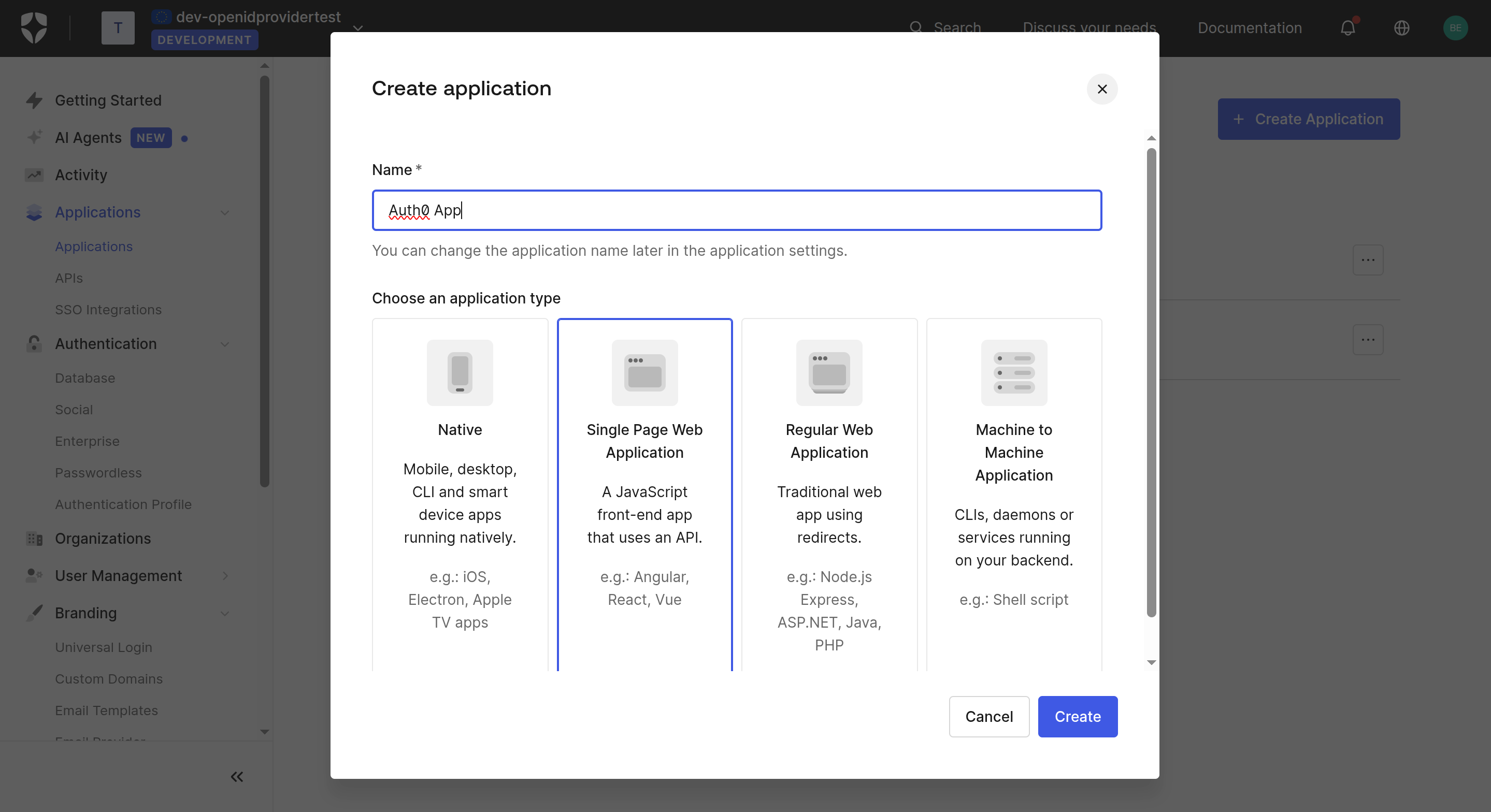 Figure 08: Create Application
- In the application Settings tab, note the Client ID and Domain. Scroll down to Application URIs and fill in:
- Allowed Callback URLs: Your application's post-login redirect URL (e.g.
http://localhost:18080/dashboard) - Allowed Logout URLs: Your application's logout URL
- Allowed Callback URLs: Your application's post-login redirect URL (e.g.
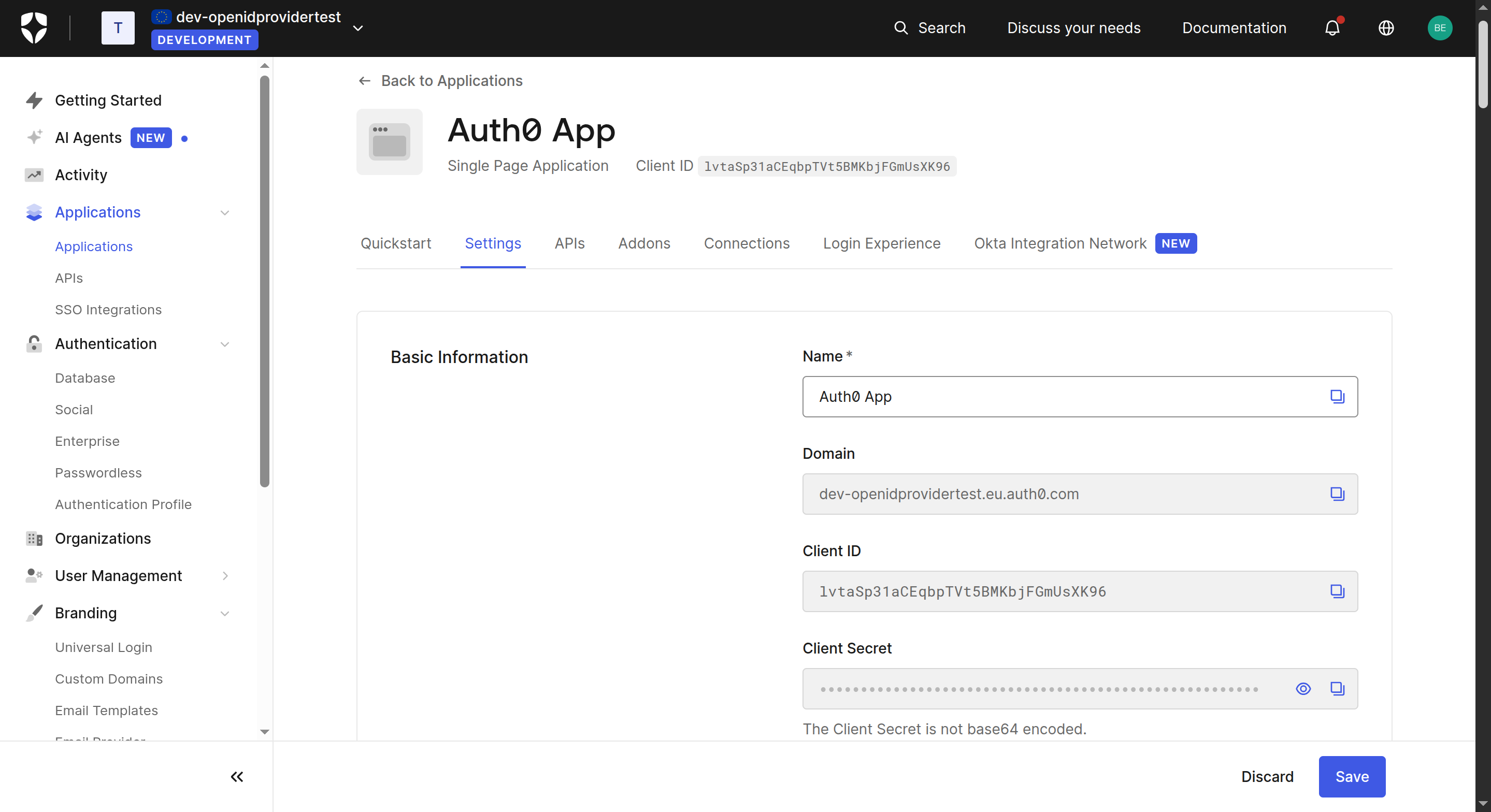 Figure 09: Application Basic Information
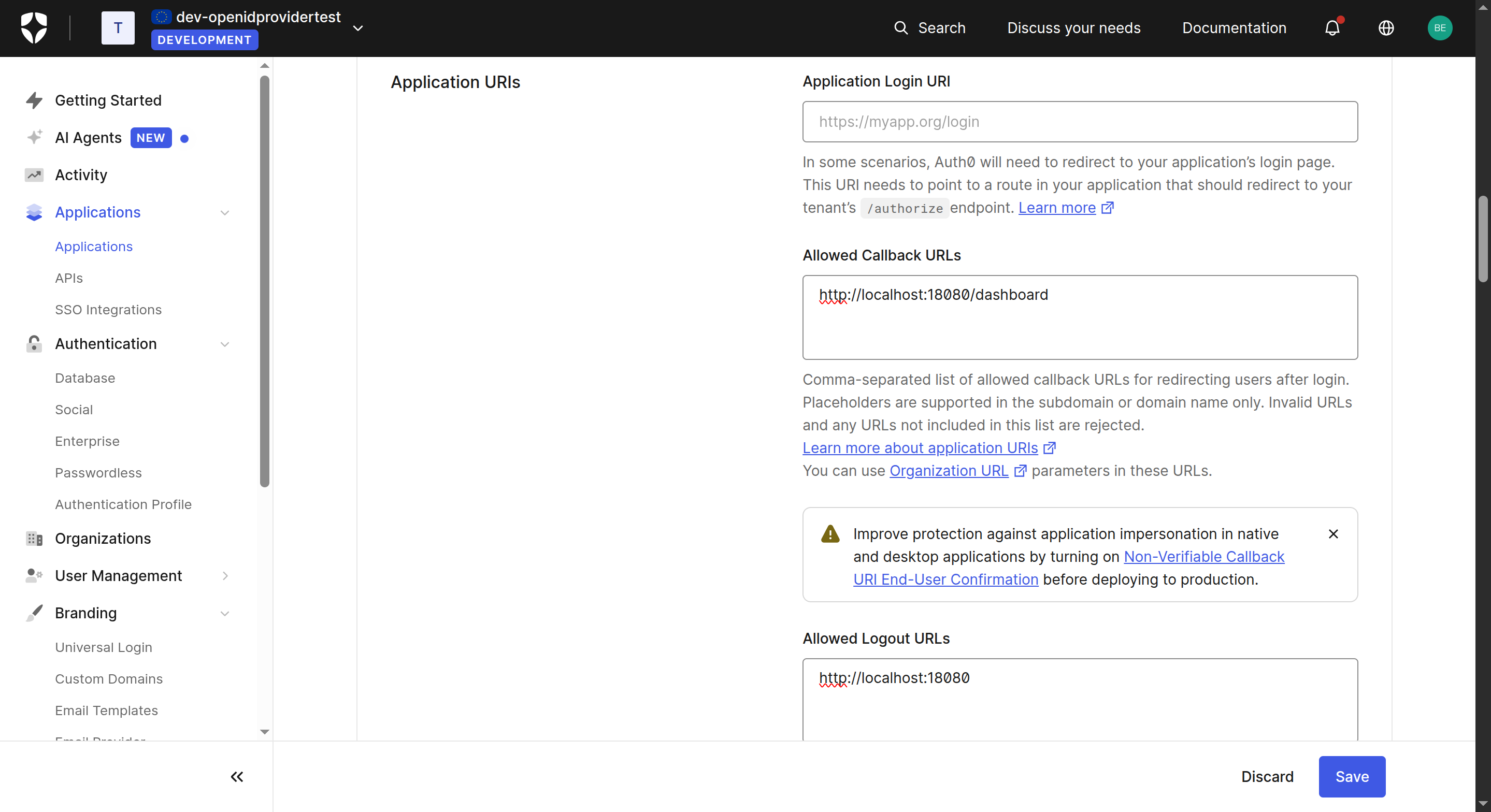 Figure 10: Application URIs
- Under Advanced Settings > Grant Types, ensure Authorization Code is enabled.
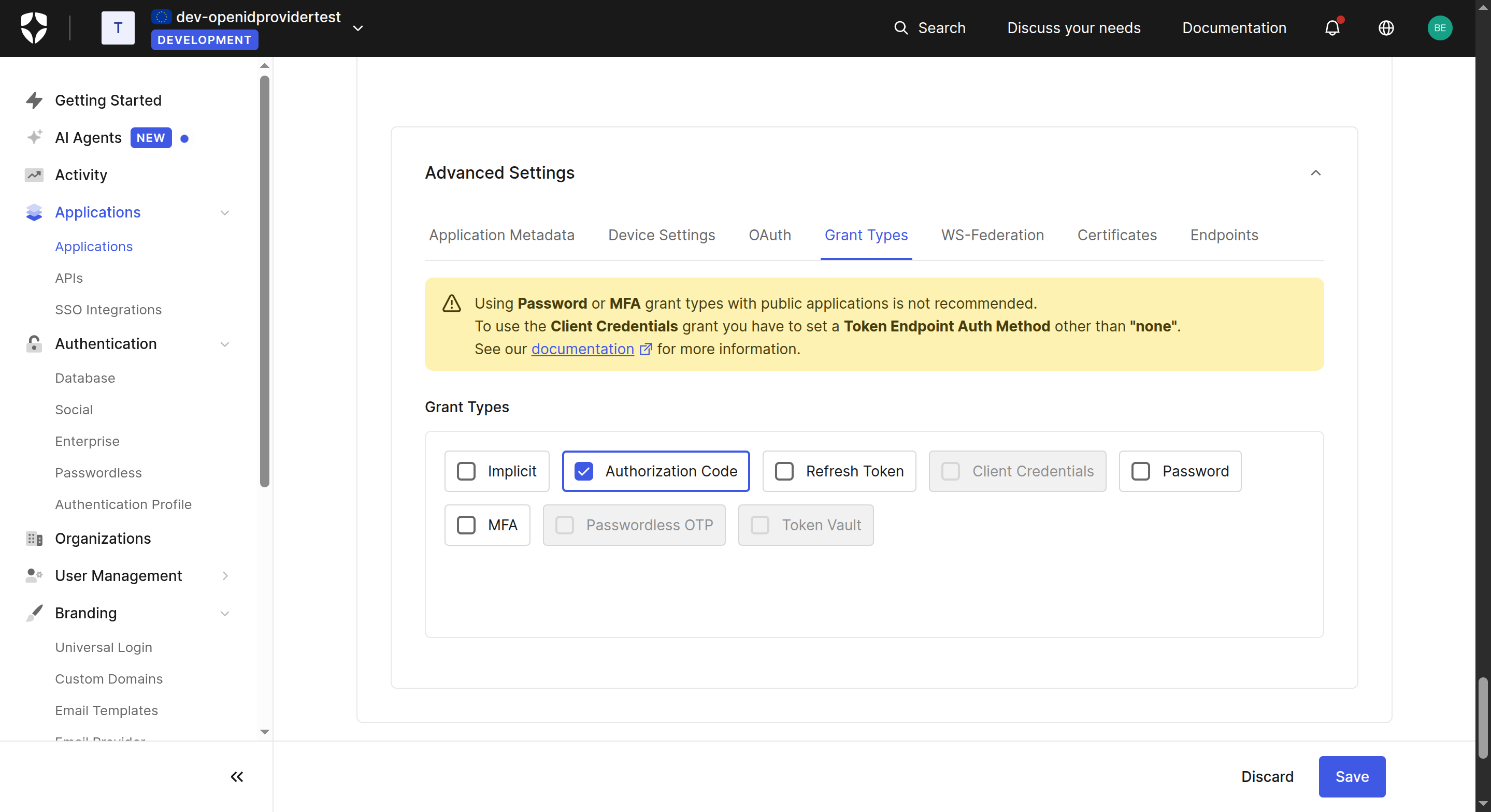 Figure 11: Grant Types
Step 5: Create a Custom Social Connection
Auth0 connects to iGrant.io as a Custom Social Connection using the OIDC endpoints from Step 2.
- Navigate to Authentication > Social and click + Create Connection.
- Scroll to the bottom and select Create Custom.
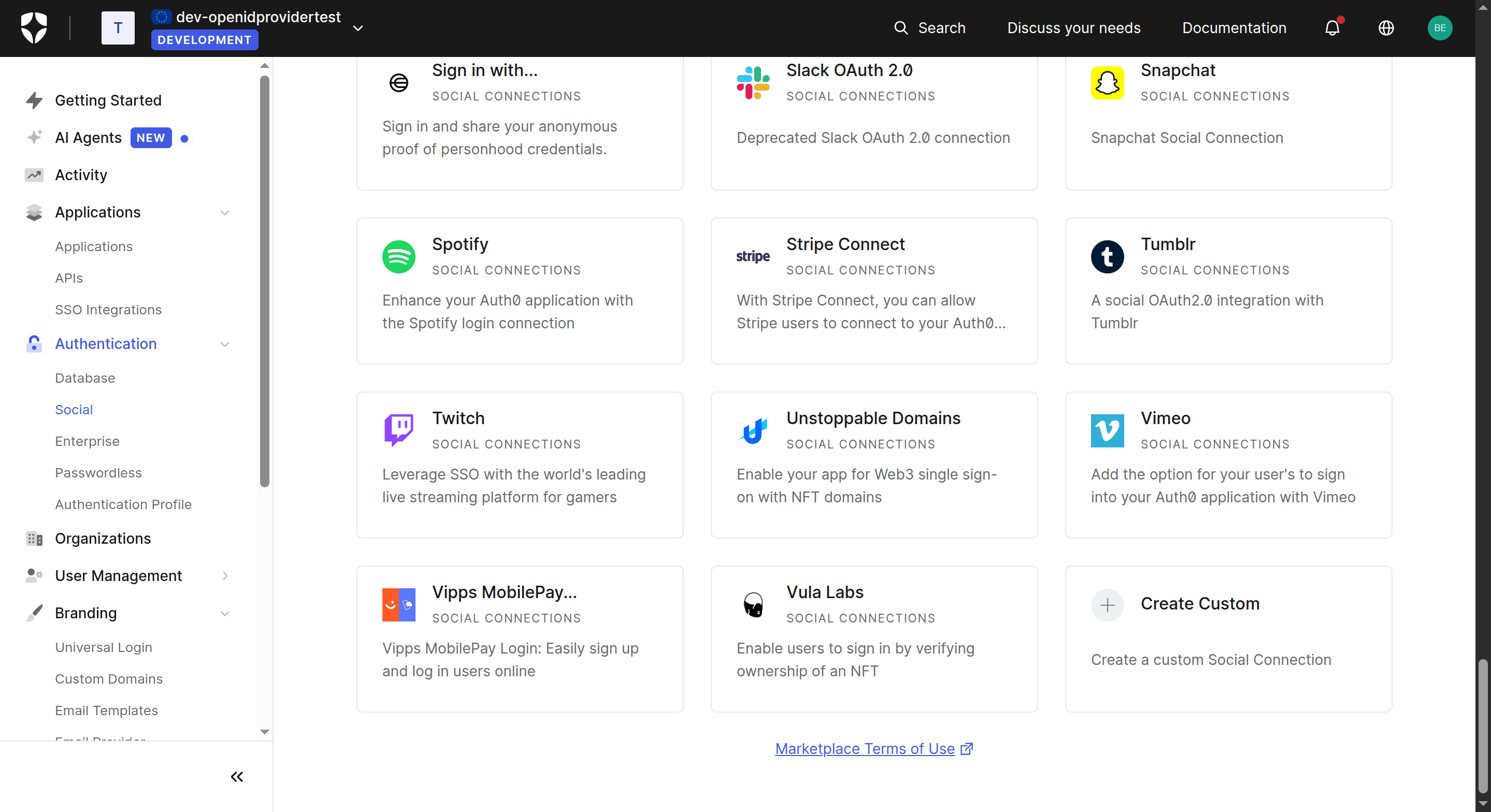 Figure 12: Social Connections - Create Custom
- Set the Purpose to Authentication and click Next.
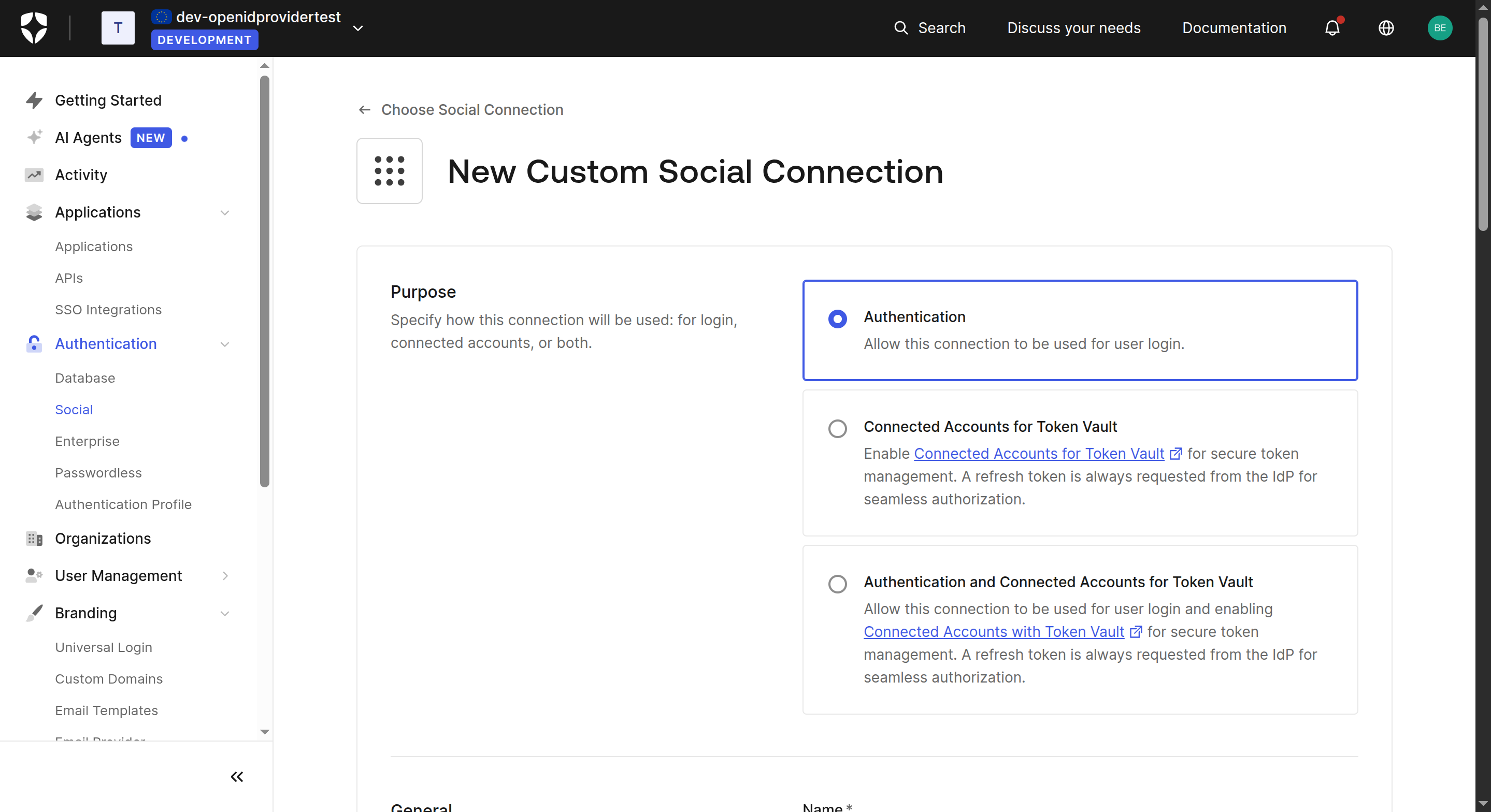 Figure 13: New Custom Social Connection - Purpose
- Fill in the connection details using the values from Steps 2 and 3:
- Name: e.g.
Passwordless-Login - Authorization URL: The authorisation endpoint from the iGrant.io OIDC discovery document
- Token URL: The token endpoint from the iGrant.io OIDC discovery document
- Scope:
openid - Client ID: (from step 3)
- Client Secret: (from step 3)
- Name: e.g.
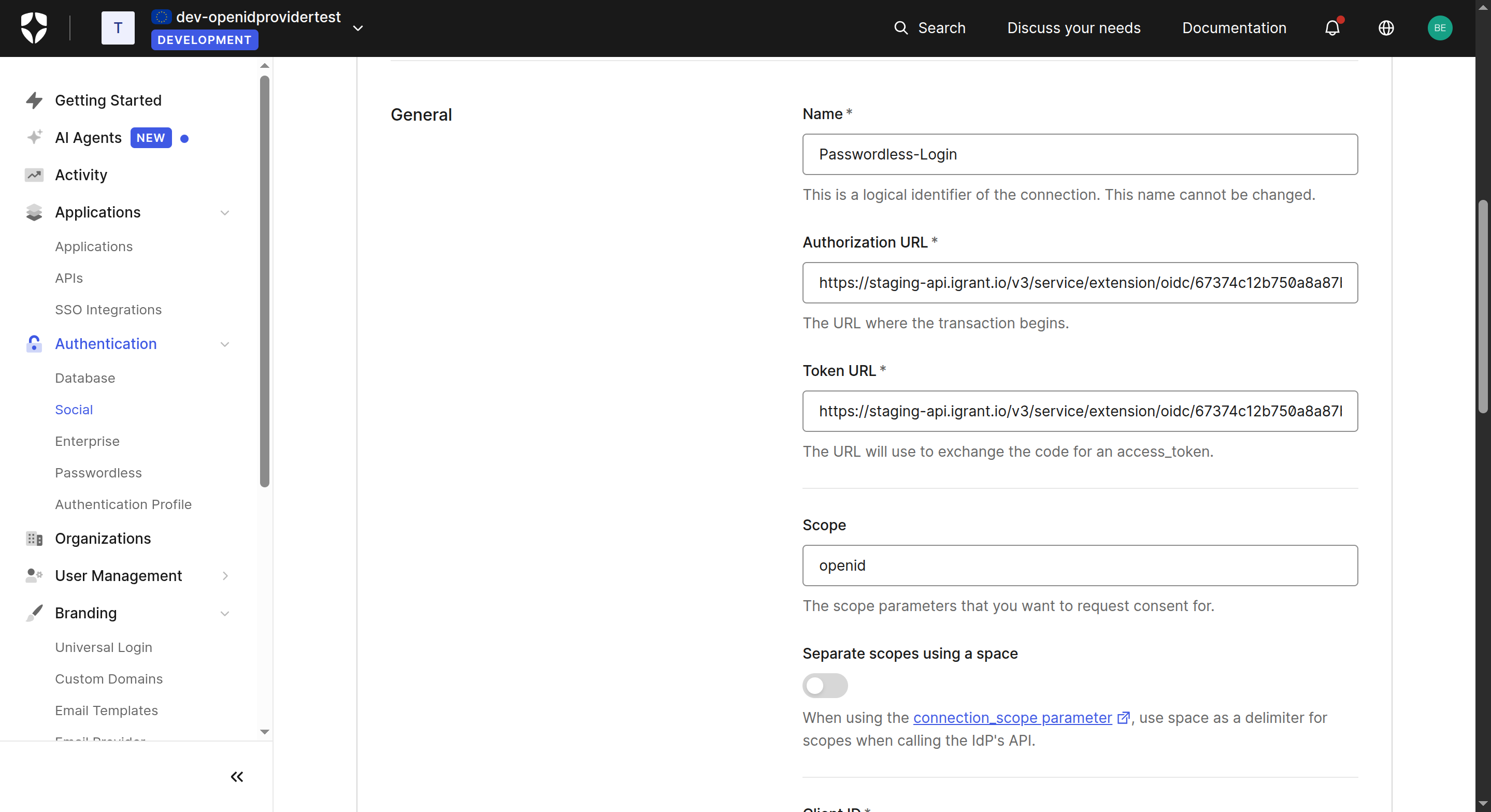 Figure 14: Connection configuration - Authorization & Token URLs
- In the Fetch User Profile Script field, enter a script that calls the iGrant.io UserInfo endpoint to retrieve the user's profile. Replace the URL with your organisation's UserInfo endpoint (found in the OIDC discovery document from Step 2). The following snippet also maps the user profile to Auth0's format. It reads the claims from
presentation["0"], the first presented credential.
In the Custom Headers field, add the Authorization header with the value Basic, followed by the base64-encoded Client ID and Client Secret (formatted as client_id:client_secret).
function(accessToken, ctx, cb) {
    const request = require('request');
    const options = {
        url: 'https://<your-org-api>/v3/service/extension/oidc/<organisationId>/userinfo',
        headers: {
            Authorization: `Bearer ${accessToken}`
        },
        json: true
    };

    request.get(options, (err, response, body) => {
        if (err || response.statusCode !== 200) {
            return cb(new Error('Failed to fetch user profile'));
        }

        // Map the user profile to Auth0's format
        const profile = {
            user_id: body.sub, // Unique identifier from your IdP
            username: body.presentation["0"].email,
            nickname: body.presentation["0"].given_name,
            name: body.presentation["0"].given_name + " " + body.presentation["0"].family_name,
            email: body.presentation["0"].email,
        };

        cb(null, profile);
    });
}
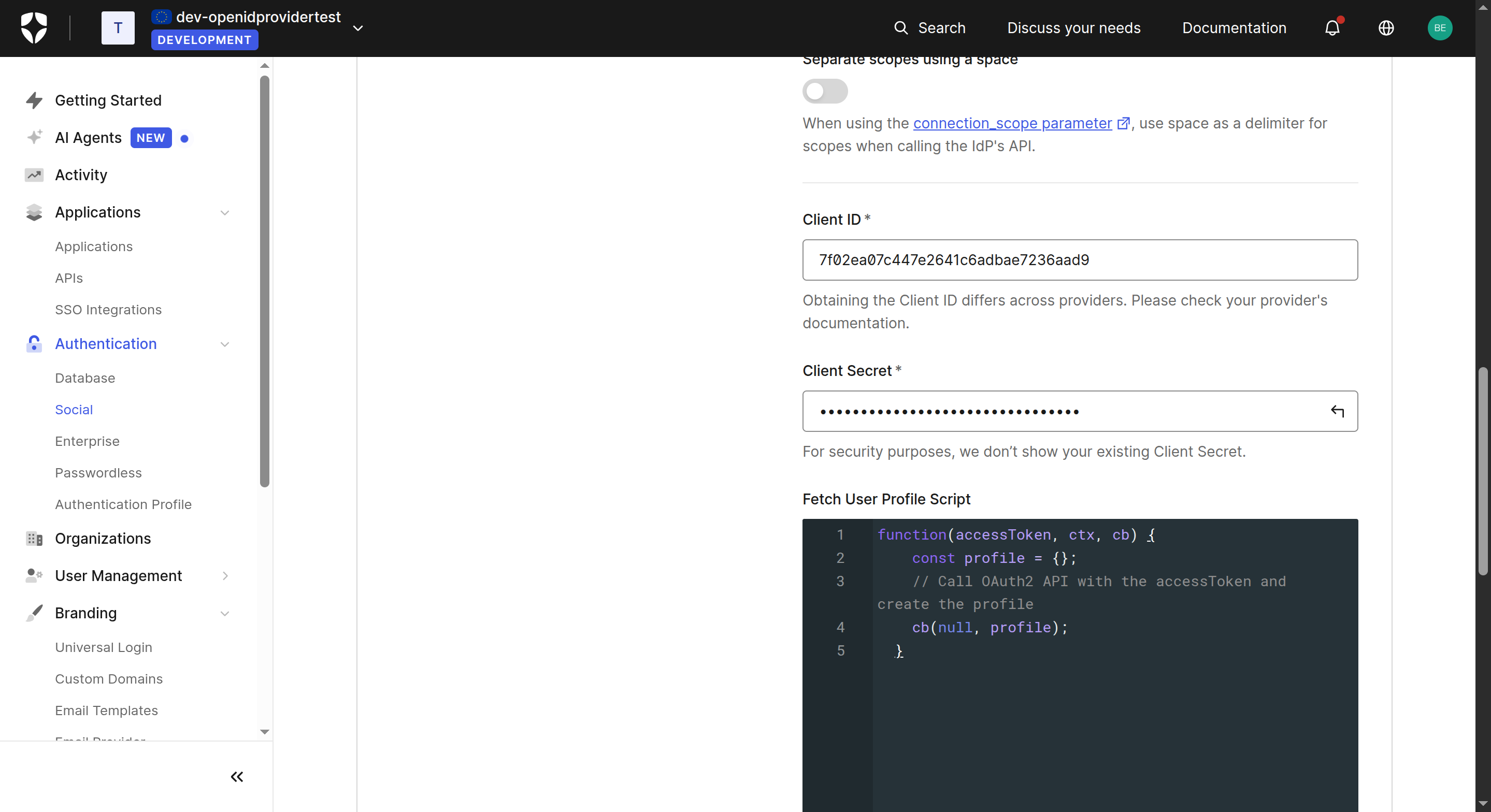 Figure 15: Fetch User Profile Script and Client credentials
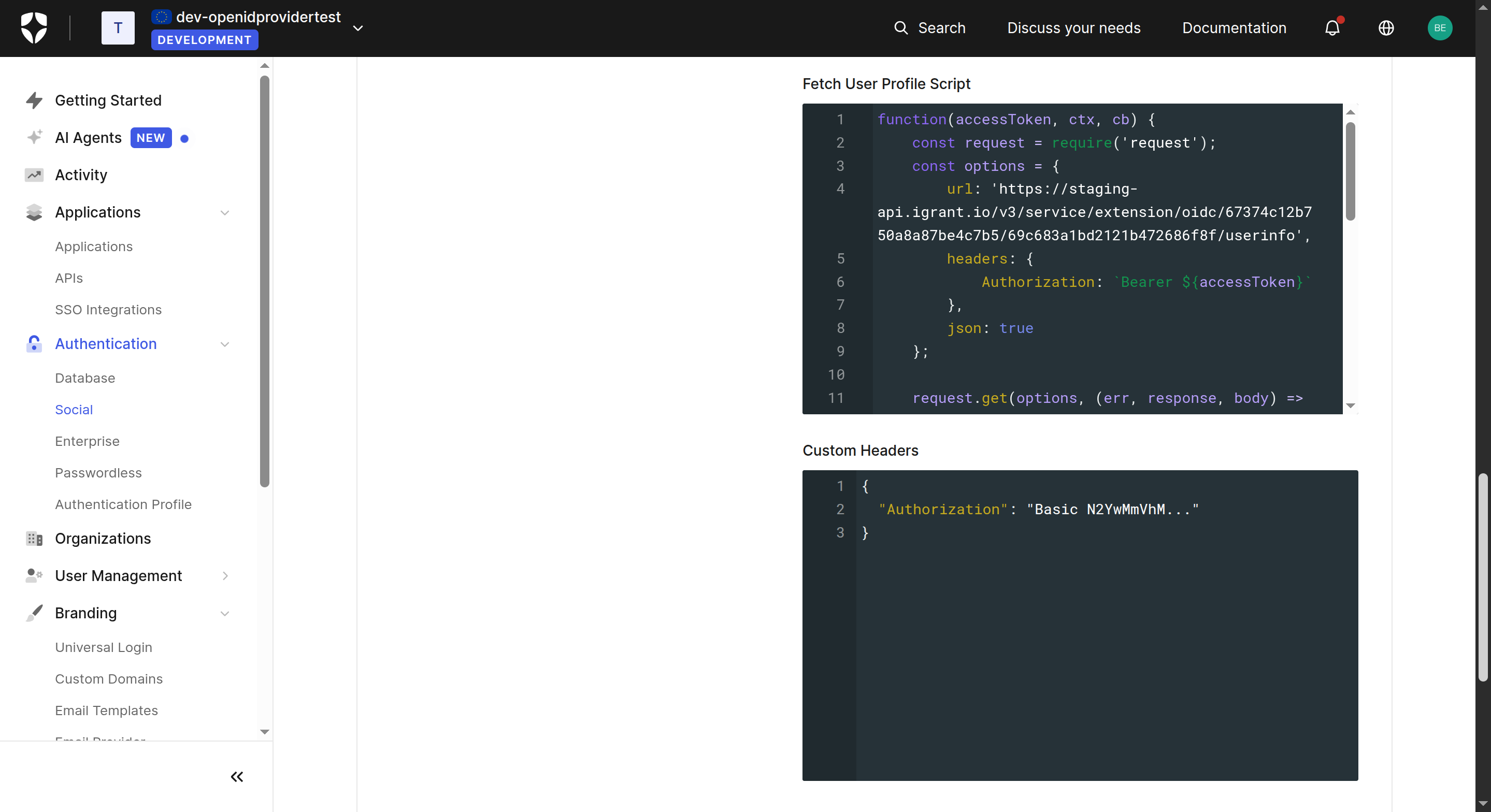 Figure 16: Full Fetch User Profile Script
- Click Create to save the connection.
Step 6: Enable the Connection for Your Application
- Navigate back to your application (Applications > Applications > your app).
- Go to the Connections tab.
- Enable the Passwordless-Login custom social connection you just created.
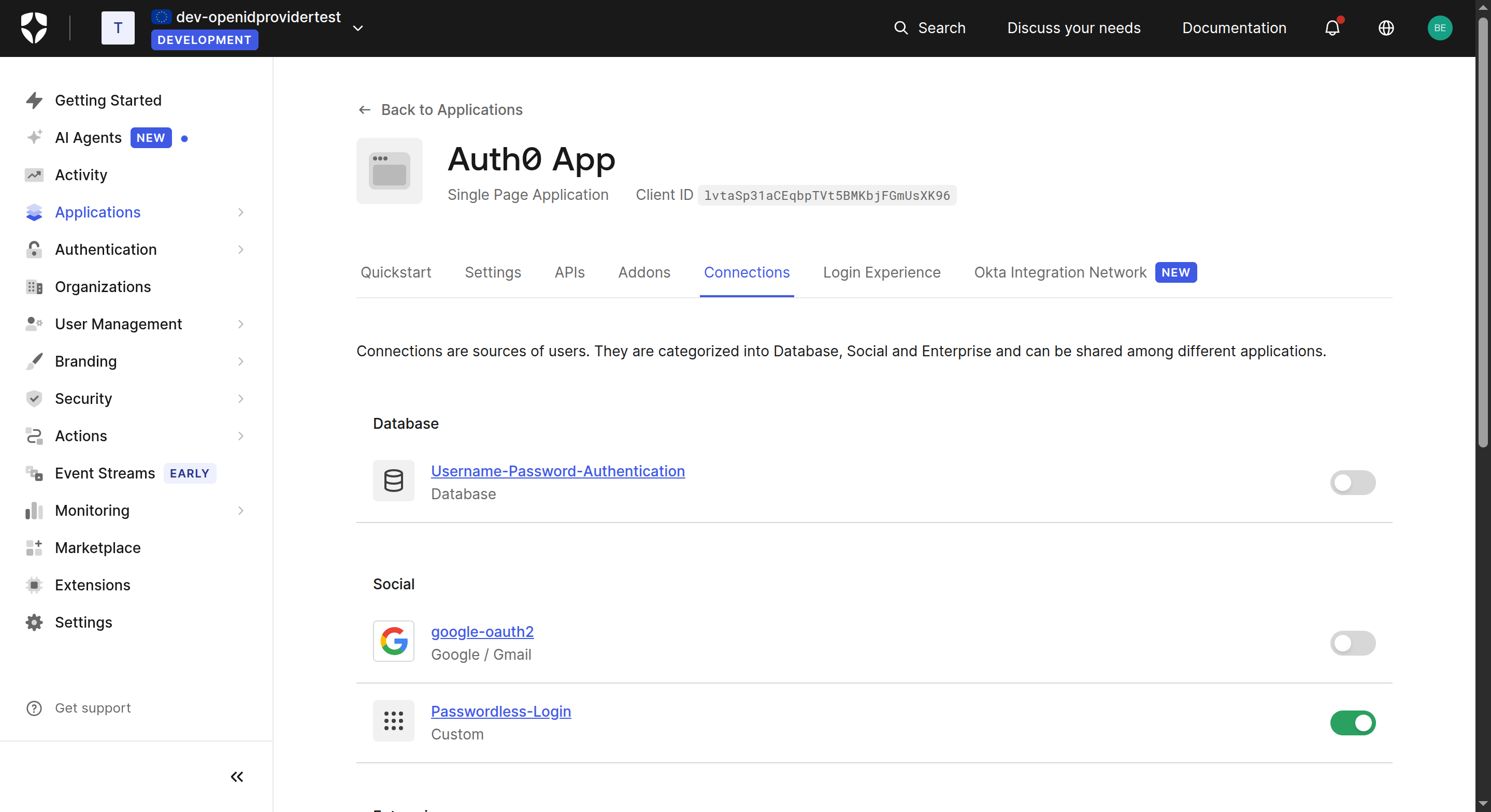 Figure 17: Enable connection for the application
Once enabled, Auth0 will route authentication requests to iGrant.io and use the UserInfo endpoint to populate the user's profile in Auth0.
Note: You can find the Redirect URI for the iGrant.io client in your Auth0 application's Settings tab. Update the iGrant.io OIDC client here to include it if not already done. The Redirect URI of the client must match the Redirect URI that Auth0 sends exactly.
Try It Yourself
Watch a short demo of the passwordless login flow with the EUDI Wallet: