DCQL: Claim Sets (Selective Disclosure)
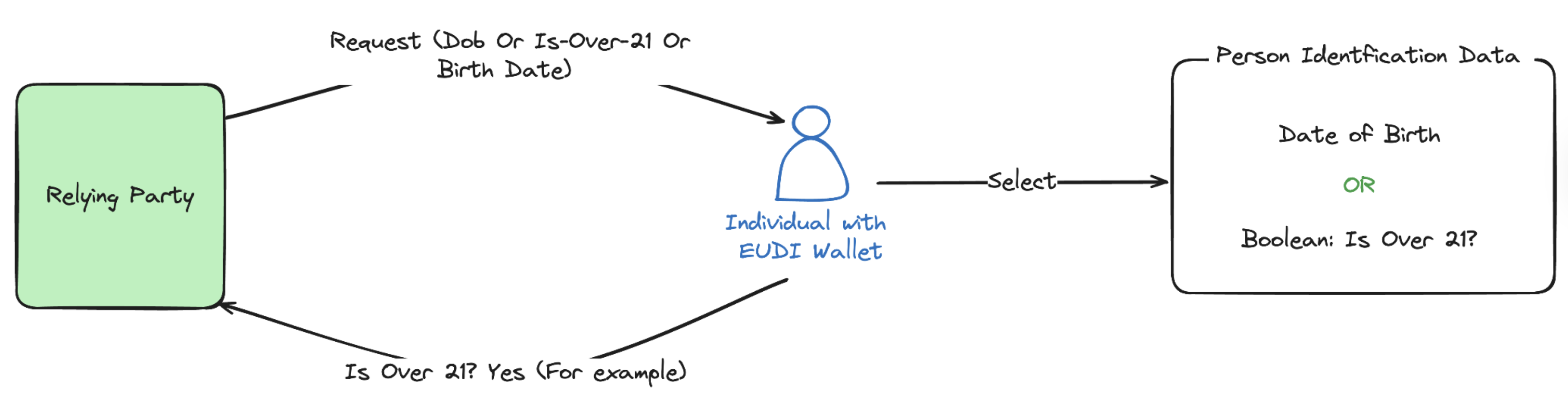
DCQL claim_sets allow a verifier to request preferred claims with fallback alternatives, enabling selective disclosure where only the minimum necessary data is shared.
Scenario: A verifier requests age verification from a PID credential, preferring a simple boolean over_21 claim and falling back to the full birthdate if unavailable.
For the underlying DCQL query, diagram and example, see the “Claim set for age verification (selective disclosure)” use case in our DCQL concepts article.
Step 1: Get the API Key (Issuer Admin)
To obtain your API key, please contact [email protected]. Once you have received your API key, enter it in the field below and click the Set API Key button to save it for future use.
Step 2: Create Credential Definition (Issuer Admin)
To create a credential definition, run the interactive block below using the Run button. Alternatively, you can manually copy the JSON and use it in the body of the API available here.
Note: The
kidvalue is mandatory with trust anchorx509. To obtain thekidvalue for the respective organisation use the API available here.
From the API response, copy the credentialDefinitionId and id value from the credentialDefinitions array for use in the Step 3.
Request
Response
Step 3: Issue and Receive Credential (Issuer/Holder)
The holder of the wallet submits a request for the issuance of a credential by executing the JSON code block below using the Run button in InTime issuance mode. Choose the credential format and replace <credentialDefinitionId> and <id> with the actual values obtained from the previous step. Alternatively, you may use the API available here.
After receiving the response, you can toggle the switch to dynamically generate a QR code. The EUDI Wallet/Holder can then accept the credential offer using the Data Wallet (or any other EU Digital Identity Wallet) by either scanning the QR code or by directly accessing the credential offer on their mobile device (e.g. via a browser).
Request
Response
To receive and accept the credential via API. First, use the credentialOffer to call the Receive Credential API. Once you have the response, copy the credentialId and provide it at Accept Credential API to accept the credential.
Step 4: Create Presentation Definition (Verifier Admin)
To create a presentation definition for requesting proof, you can run the code block below using the Run button. Alternatively, you can manually copy the code block and use it in the body of the API request provided here.
Note: The
kidvalue is mandatory with trust anchorx509. To obtain thekidvalue for the respective organisation use the API available here.
Once a presentation definition has been created, the presentationDefinitionId can be reused to verify multiple credentials (Step 6).
Request
Response
Step 5: Create Verification Request (Verifier/Relying Party)
To create the verification request, execute the code block below using the Run button. Alternatively, you can manually copy the JSON and use it in the body of the API available here.
After receiving the response, toggle the button provided to dynamically generate a QR code. The EUDI Wallet/Holder can then accept the verification request using the Data Wallet (or any other EU Digital Identity Wallet) by either scanning the QR code or directly accessing the verification request on their mobile device, such as via a browser.
Request
Response
Users can copy the presentationExchangeId from the JSON response for use in Step 7 to read verification history.
Step 6: Send and Receive Verifiable Presentation (Holder)
The holder wallet accepts (consents) to send the requested credentials.
- Receive Verification:
- Use the
vpTokenQrCode(step 5) with the API available here to receive the verification. - Copy the
presentationIdfrom the JSON response received from Receive Verification for use in Step 6b.
- Use the
- Filter Verification:
- Use that
presentationIdwith the API available here to find matching credentials. - Save the
<id>and<credentialId>from the response.
- Use that
- Send Verification:
- Use the
presentationId,<id>and<credentialId>with the API available here to send the credentials to the verifier.
- Use the
Step 7: Send and Receive Verifiable Presentation (Verifier/Relying Party)
- The Verfier (Relying Party) receives the requested credentials and can verify it. They may read the received credential by executing the Read Verification History API.
- From the response received, the
vpTokenResponsecan be decoded using JWT Decoder. - From the decoded response, the
verifiableCredentialinside the 'vp' can be further decoded to view the received credentials.